Summarize this blog post with:


Quick Summary
Webflow to WordPress migration helps businesses gain greater flexibility, better content management, and more control over website features. WordPress offers advanced customisation, SEO capabilities, and integration options, making it suitable for businesses planning long-term website growth.
A successful migration requires proper planning, accurate content transfer, and SEO protection. Businesses should focus on preserving URLs, setting up redirects, rebuilding essential features, and testing website performance. Regular monitoring after migration helps maintain search rankings, website functionality, and user experience.
- Key Takeaways
- Webflow to WordPress Migration: What Businesses Should Know?
- When Should a Business Consider Moving from Webflow to WordPress?
- ➜ Limited flexibility for specific business needs
- ➜ Need for advanced plugins and integrations
- ➜ Growing content management requirements
- ➜ Preference for greater hosting control
- ➜ Plans for long-term website expansion
- ➜ Cost and return on investment
- ➜ When staying on Webflow may be the better choice
- Webflow vs WordPress: Key Differences Businesses Should Understand
- ◈ Website Design and Customisation
- ◈ Content Management and Blogging
- ◈ SEO Features and Control
- ◈ Third-Party Integrations
- ◈ Website Maintenance and Scalability
- What Can You Migrate from Webflow to WordPress?
- ➜ Website pages and written content
- ➜ Blog posts and CMS collections
- ➜ Images and media files
- ➜ SEO titles and meta descriptions
- ➜ Existing URL structures
- ➜ Forms and interactive features that need rebuilding
- ➜ DIY migration or a professional Webflow to WordPress migration service?
- How to Plan a Successful Webflow to WordPress Migration
- ◈ Define Your Website Migration Goals
- ◈ Audit Existing Website Content and SEO
- ◈ Choose the Right WordPress Hosting
- ◈ Plan Content and CMS Field Mapping
- ◈ Set a Realistic Timeline and Budget
- ◈ Choose the Right Migration Partner
- ◈ Prepare a Website Migration Checklist
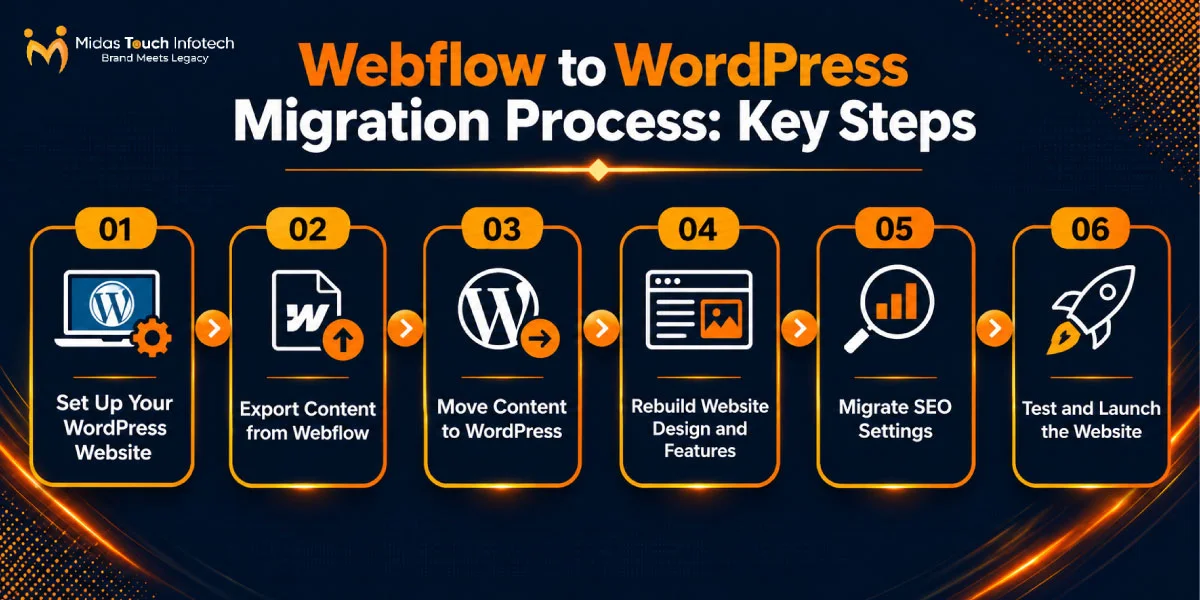
- Webflow to WordPress Migration Process: Key Steps
- Step 1: Set Up Your WordPress Website
- Step 2: Export Content from Webflow
- Step 3: Move Content to WordPress
- Step 4: Rebuild Website Design and Features
- Step 5: Migrate SEO Settings
- Step 6: Test and Launch the Website
- Key SEO Risks During Webflow to WordPress Migration
- ➜ Changes in Website URL Structure
- ➜ Missing SEO Metadata
- ➜ Broken Internal Links and Redirects
- ➜ Content and Indexing Issues
- ➜ Website Speed and Performance Changes
- How to Evaluate Your Website After Migration
- ◈ Check website pages and content accuracy
- ◈ Monitor organic traffic and rankings
- ◈ Review website speed and Core Web Vitals
- ◈ Test contact forms and integrations
- ◈ Fix crawl errors and broken links
- ◈ Gather feedback from your team
- ◈ Monitor website performance after launch
- Ready to Move Your Webflow Website to WordPress?
Webflow to WordPress Migration: What Businesses Should Know?
A Webflow to WordPress migration is a decision more businesses are weighing as their websites grow from marketing showcases into lead engines, content hubs and integrated business tools.
Webflow is a capable visual design platform, and many companies launch on it because designers can build polished pages without writing code. Over time, though, needs change. Content teams publish more, sales teams want deeper CRM connections and leadership asks for lower platform risk.
Platform reach is one reason WordPress keeps coming up in these discussions. According to W3Techs figures from November 2026, WordPress runs 38.6% of all websites and holds a 57.6% share of sites with a known content management system, while Webflow accounts for 0.8% of all websites.
A larger ecosystem means more developers to hire, more plugins to choose from and more long-term support options. For decision-makers, that translates into lower hiring risk and more choice when the website needs to change.
Many organisations plan the move with a WordPress development agency India or a local specialist, because the migration is not a one-click transfer. Webflow’s design, CMS content, forms and interactions each move in different ways, and some must be rebuilt.
WordPress is not the right answer for every business. It gives more control and flexibility, but it also brings responsibility for hosting, updates and security that Webflow handles for you.
This Webflow to WordPress migration guide explains when a move makes sense, how the two platforms differ, what can be migrated, how to plan and run the Webflow to WordPress migration process, which SEO risks to watch and how to evaluate the site after launch.
When Should a Business Consider Moving from Webflow to WordPress?
Moving platforms is a significant project, so it should solve a real business problem. These are the situations where a Webflow to WordPress migration usually pays off.
➜ Limited flexibility for specific business needs
Webflow excels at visual design, but complex functionality can be harder to build. Custom calculators, advanced filtering, user dashboards, multi-step quote forms or industry-specific tools often require external services or custom code embedded in pages.
On WordPress, the same features can usually be built as plugins or custom code inside the website itself. That makes them easier to maintain, test and extend as requirements grow.
➜ Need for advanced plugins and integrations
The WordPress plugin directory offers over 79,000 free plugins, covering CRM connections, marketing automation, multilingual content, memberships, learning management, bookings and e-commerce.
When a business relies on several tools such as HubSpot, Salesforce, Zoho or an ERP, WordPress often has existing connectors. Fewer custom integrations mean faster delivery and lower long-term costs.
➜ Growing content management requirements
As content libraries grow, teams need editorial workflows, user roles, revision history, scheduled publishing and flexible content types.
WordPress was built as a publishing platform and supports these features natively or through well-established plugins. Companies with large blogs, resource centres or news sections often find content operations easier to scale on WordPress.
➜ Preference for greater hosting control
Webflow hosting is bundled with the platform. You get reliable managed hosting, but you cannot choose your server, change the server configuration or move the full working site to another provider.
Self-hosted WordPress lets you choose the hosting provider, region, backup schedule and security setup, and you can download your full database and files at any time. For businesses with data residency or procurement requirements, this control can be decisive.
➜ Plans for long-term website expansion
If the roadmap includes an online store, a customer portal, multiple languages or a network of regional sites, it is worth asking whether the current platform can support all of it at a reasonable cost.
Migrating before a major expansion is usually cheaper than migrating after it. Every new page, feature and integration built on the old platform is another item to move later.
➜ Cost and return on investment
Compare the full cost of each platform over three to five years, not just monthly plan prices. On Webflow, that includes site and workspace plans, paid add-ons and external tools used to fill feature gaps.
On WordPress, include hosting, premium plugins or themes, maintenance and the one-time migration fee. Then weigh these costs against the business gains you expect, such as more leads from better integrations or faster content publishing.
Many businesses ask a WordPress development company India or a local agency for a short platform assessment before committing. A good assessment will tell you plainly if staying put is the better option.
➜ When staying on Webflow may be the better choice
If your site is mainly a design-led marketing site, your team is comfortable in the Webflow Designer and you have no integration or content scaling problems, a migration may not be worth the cost and disruption.
A clear-eyed assessment protects the budget. The goal is the platform that best supports your business plan, not a move for its own sake.
Webflow vs WordPress: Key Differences Businesses Should Understand
Both platforms can power professional business websites. The difference lies in how much control you have, who maintains what and how the site can grow.
The table below gives a quick side-by-side view before the detailed comparison that follows.
| Area | Webflow | WordPress (self-hosted) |
|---|---|---|
| Design approach | Visual designer with fine control over layout and interactions | Themes, block editor and page builders, plus full code access |
| Content management | CMS Collections with structured fields | Posts, pages, custom post types, custom fields and editorial workflows |
| SEO control | Built-in fields for titles, descriptions, redirects and sitemap | SEO plugins plus server-level control over redirects, schema and indexing |
| Integrations | Native apps, embeds and third-party automation tools | Over 79,000 free plugins plus custom development |
| Hosting | Included and managed by Webflow | Your choice of provider, region and setup |
| Maintenance | Handled mostly by the platform | Your responsibility or your development partner’s |
| Portability | Code export on Workspace plans excludes CMS, forms and e-commerce | Full database and files can be exported and moved |
◈ Website Design and Customisation
Webflow gives designers visual control over layout, typography, animations and responsive breakpoints. For a design-led team, this is a strong advantage.
WordPress offers design flexibility through themes, the block editor and page builders, with full access to the underlying code. Developers can build custom themes and blocks that match a design system exactly.
The practical difference is who does the work. In Webflow, designers can often make advanced changes alone. In WordPress, a well-built custom theme gives editors safe, reusable blocks while developers handle deeper changes.
◈ Content Management and Blogging
Webflow’s CMS uses Collections with structured fields, which work well for blogs, case studies and team pages.
WordPress provides posts, pages, custom post types, taxonomies, custom fields, user roles, revision history and scheduled publishing. Editorial plugins add approval workflows and content calendars.
For organisations with several authors, departments or regions publishing content, WordPress usually offers more mature workflow options.
◈ SEO Features and Control
Webflow includes good built-in SEO controls: custom titles, meta descriptions, Open Graph settings, 301 redirects, auto-generated sitemaps and clean code output.
WordPress, paired with an SEO plugin such as Yoast SEO or Rank Math, adds page-level control over canonical tags, schema markup, robots directives, breadcrumbs and sitemaps. Server access allows advanced redirect rules and performance tuning.
Neither platform guarantees rankings. Results still depend on content quality, technical health and authority, but WordPress gives SEO teams more levers to pull.
◈ Third-Party Integrations
Webflow connects to other tools through native apps, embedded code and automation platforms such as Zapier or Make.
WordPress offers direct plugins for most business systems and a REST API for custom connections. This is often the deciding factor for companies that need website data to flow into CRM, marketing automation or ERP systems.
Where an off-the-shelf plugin is not enough, custom WordPress development services India teams and local developers can build tailored integrations that run inside the website, rather than depending on several external connectors.
◈ Website Maintenance and Scalability
Webflow handles hosting, security patches and platform updates. This reduces maintenance work but limits how the site can be scaled or tuned.
WordPress requires regular updates to core, themes and plugins, plus backups and security monitoring. In return, you can scale hosting, add caching layers, use a content delivery network and optimise the server for your traffic.
For businesses without in-house developers, a maintenance agreement with a development partner, such as a local firm or a WordPress development agency in India, is the usual way to manage this responsibility.
Also Read : How Much Does WordPress Maintenance Cost in India in 2027?
What Can You Migrate from Webflow to WordPress?
Some parts of a Webflow site move cleanly, while others need to be rebuilt. Knowing the difference early helps you set a realistic scope and budget.
➜ Website pages and written content
Static page content such as headlines, body text and calls-to-action can be copied to WordPress. The page layouts themselves are rebuilt in the new theme.
Webflow offers code export on paid Workspace plans, which provides HTML, CSS and JavaScript. This is useful as a design reference, but it does not convert into a working WordPress theme on its own.
An experienced WordPress web development company in India or elsewhere will typically use this export, along with screenshots, as the blueprint for a custom theme rather than trying to paste the code directly.
➜ Blog posts and CMS collections
Webflow lets you export any CMS Collection as a CSV file. These files contain the content of your blog posts, case studies, team profiles and other collection items.
The CSV can then be imported into WordPress posts or custom post types using an import plugin such as WP All Import, with each Webflow field mapped to a WordPress field.
➜ Images and media files
Images in CMS items usually appear in the CSV as URLs pointing to Webflow’s content delivery network. Importers can download these images into the WordPress Media Library during the import.
Images placed directly on static pages must be downloaded and uploaded separately. Use this step to rename files descriptively and compress them.
➜ SEO titles and meta descriptions
SEO fields stored in CMS Collections can be exported with the CSV. Titles and descriptions on static pages must be recorded from the Webflow page settings and re-entered in your WordPress SEO plugin.
➜ Existing URL structures
Webflow typically places collection items under a collection path, such as /blog/post-name. WordPress can reproduce most of these patterns with custom permalinks or custom post type settings.
Matching URLs where possible reduces the number of redirects and lowers SEO risk.
➜ Forms and interactive features that need rebuilding
Webflow’s documentation confirms that exported code does not include CMS content, e-commerce functionality, form processing, user accounts, site search or password protection.
These features need WordPress equivalents: a form plugin, WooCommerce for stores, a membership plugin for gated content and a search solution. Webflow interactions and animations are recreated with CSS, JavaScript or page-builder features.
➜ DIY migration or a professional Webflow to WordPress migration service?
A small site with a handful of pages and one blog collection can sometimes be moved by an in-house developer. The risk lies in the details: field mapping, redirects, forms and tracking.
A professional Webflow to WordPress migration service is usually worth the fee for sites with several CMS Collections, e-commerce, gated content or meaningful organic traffic. The cost covers planning, custom theme work, data import, redirect testing and post-launch support.
Companies across the US, UK, Europe and the Middle East often work with a WordPress web development company in India for this kind of project to access experienced teams and flexible engagement models. Whatever the location, judge a partner on its migration process and testing, not on price alone.
How to Plan a Successful Webflow to WordPress Migration
Planning determines most of the outcome. A clear plan keeps the project on budget, protects SEO and avoids surprises at launch.
◈ Define Your Website Migration Goals
Start by writing down why you are migrating and what success looks like. Examples include connecting the site to your CRM, cutting the time needed to publish content, adding an online store or reducing reliance on external tools.
Turn these goals into measurable targets, such as maintaining organic traffic within a set range after launch, reducing page load time or increasing form conversions.
Clear goals also guide scope decisions. If a feature does not support a goal, it can wait for a later phase.
◈ Audit Existing Website Content and SEO
Crawl the Webflow site with a tool such as Screaming Frog and export data from Google Search Console and your analytics platform.
Build a spreadsheet listing every URL with its page title, meta description, organic traffic, conversions and backlinks. Mark each page as keep, update, merge or remove.
Your highest-value pages deserve extra care. They are the first to map, the first to test and the first to monitor after launch.
◈ Choose the Right WordPress Hosting
Hosting has a direct effect on speed, uptime and security. Check that the provider meets the official WordPress requirements, which recommend PHP 8.3 or newer, MySQL 8.4 or MariaDB 10.11 or newer, and HTTPS support.
Managed WordPress hosting with daily backups, staging sites, server caching and malware scanning is usually the right choice for business websites. Moving from Webflow’s managed hosting to cheap shared hosting is a common cause of slower sites after migration.
◈ Plan Content and CMS Field Mapping
List every Webflow Collection and its fields: plain text, rich text, images, references, multi-references, dates, switches and options.
Decide where each field will live in WordPress. Blog posts usually map to standard posts, while case studies, team members or locations often become custom post types with custom fields.
Reference fields need special attention. Relationships between collections, such as a case study linked to an industry, must be recreated as taxonomies or relationship fields so the connections survive the move.
◈ Set a Realistic Timeline and Budget
A simple brochure site may take three to five weeks. A site with multiple CMS Collections, a custom theme, e-commerce and integrations can take two to three months or more.
Build in time for content review, stakeholder approvals, testing and fixes. Avoid launching during your busiest sales period or just before a major campaign.
When comparing quotes for a Webflow to WordPress migration service, check exactly what each includes. Two proposals can look very different simply because one covers redirect mapping, SEO checks and post-launch monitoring and the other does not.
◈ Choose the Right Migration Partner
If you are not running the project in-house, the partner you choose has a large effect on the result. Ask to see similar migrations, and ask how the team handles field mapping, redirects and testing.
A capable WordPress web development company in India or a local agency should be able to explain its process step by step, share a sample Webflow to WordPress migration checklist and describe how it measures success after launch.
Confirm who owns the hosting account, the domain and the code once the project ends. Your business should own all three.
For complex integrations, look for experience with custom WordPress development services India providers or local developers have delivered for similar companies, such as CRM connectors or custom post type structures.
◈ Prepare a Website Migration Checklist
A written Webflow to WordPress migration checklist keeps the team aligned and prevents missed steps. At minimum, it should cover:
• Full URL inventory and redirect map
• CSV exports for every CMS Collection
• Downloaded images, documents and video files
• SEO titles, descriptions and Open Graph data
• Forms, integrations and tracking codes to rebuild
• Testing plan, launch plan and rollback plan
• Named owner and deadline for each task
Share the Webflow to WordPress migration checklist with everyone involved, including content editors and stakeholders who will sign off the launch.
Webflow to WordPress Migration Process: Key Steps
Use this part of the Webflow to WordPress migration guide as your working plan. The Webflow to WordPress migration process below follows the order most professional teams use. The Webflow site stays live while the new WordPress site is built and tested on a staging environment.
Step 1: Set Up Your WordPress Website
◇ Install and configure WordPress
Install WordPress on your chosen host, ideally on a staging subdomain. Enable HTTPS, set a strong admin password with two-factor authentication and configure the site title, time zone and language.
Block search engines from indexing the staging site, and add only essential plugins at first: security, backups, caching and an SEO plugin.
◇ Select a suitable theme
Choose a lightweight theme compatible with the block editor, or commission a custom theme based on your Webflow design. A custom theme is often the better choice for design-led brands, since it can reproduce your layout without the bloat of a multipurpose theme.
Step 2: Export Content from Webflow
◇ Export supported CMS data
In the Webflow Designer, open each Collection and use the export option to download a CSV file. Repeat this for every Collection, including e-commerce products and user account data if you use them.
Store the CSV files with clear names and dates. Note any fields that look incomplete, such as rich text with embedded elements.
◇ Save pages and media files
Take full-page screenshots of every static page and template. If your plan allows, download the code export as a design reference.
Download images, PDFs and other assets from the Webflow asset manager, and export any form submissions you need to keep.
Step 3: Move Content to WordPress
◇ Import CMS content
Import each CSV into the matching WordPress post type, mapping Webflow fields to WordPress fields. Run a small test import first, check the results and adjust the mapping before importing everything.
After import, review rich text formatting, headings, links, embedded media and author and date fields on a sample of posts.
◇ Recreate static pages
Build static pages such as Home, About, Services and Contact in the block editor or page builder. Use the screenshots as a reference and update outdated content as you go.
Replace any internal links that point to Webflow addresses with the new WordPress URLs.
Step 4: Rebuild Website Design and Features
◇ Recreate layouts and navigation
Rebuild headers, footers, menus and page templates to match your brand. Recreate key Webflow interactions with CSS animations or lightweight JavaScript, keeping only those that support the user experience.
This is also a good time to simplify navigation and improve conversion paths, based on the analytics you collected during the audit.
◇ Set up forms and integrations
Rebuild every form with a WordPress form plugin, then connect it to email notifications, your CRM and any marketing automation tools.
Reinstall tracking codes such as Google Analytics, Google Tag Manager and advertising pixels. Test each one, because missing tracking after launch leaves gaps in reporting that cannot be filled later.
Step 5: Migrate SEO Settings
◇ Transfer metadata and URLs
Enter SEO titles, meta descriptions and Open Graph data for every page using your SEO plugin. Keep proven titles unchanged at launch so you can measure the migration’s impact separately from content changes.
Configure permalinks to match Webflow URLs wherever possible. Teams offering custom WordPress development services India or elsewhere often write small custom rules to reproduce Webflow’s collection paths exactly, which removes the need for many redirects.
◇ Configure 301 redirects
For every URL that changes, add a permanent 301 redirect to its new equivalent. Google’s redirect documentation describes permanent server-side redirects as the best way to make sure people and Search reach the correct page.
Avoid redirect chains and do not send many unrelated old pages to the homepage. Test every redirect against your URL inventory before launch.
Step 6: Test and Launch the Website
◇ Test functionality and responsiveness
Click through every page and menu, submit every form and confirm data reaches the right inbox and CRM. Test on several phones, tablets and browsers.
Measure performance against the Core Web Vitals thresholds: Largest Contentful Paint of 2.5 seconds or less, Interaction to Next Paint of 200 milliseconds or less and Cumulative Layout Shift of 0.1 or less.
◇ Complete final checks before launch
Lower your DNS TTL a day before launch, then switch the domain during a low-traffic period. Remove the search engine block, confirm HTTPS works on every page and test redirects on the live domain.
Keep the Webflow site plan active for a few weeks as a fallback. Cancel it only when the WordPress site is stable and all data is confirmed.
Also Read : Top 13 WordPress Development Companies in Ahmedabad in 2027
Key SEO Risks During Webflow to WordPress Migration
SEO is where migrations most often lose value. Google’s site move guidance notes that rankings may fluctuate during a move and that medium-sized sites can take a few weeks or more for new URLs to replace old ones. These are the risks to manage.
➜ Changes in Website URL Structure
Every changed URL is a risk. If a high-ranking page moves without a redirect, its rankings and backlinks are lost.
Keep URLs identical wherever possible. Where changes are unavoidable, map each old URL to its closest new equivalent and use permanent redirects, which Google states do not cause a loss in PageRank.
Google also advises keeping redirects in place for at least one year, so treat your redirect list as a long-term asset rather than a launch task.
➜ Missing SEO Metadata
Titles and meta descriptions on static pages are easy to miss because they do not appear in CMS exports.
Use the audit spreadsheet to check every page after the build. Missing titles often lead to search engines generating their own, which can reduce click-through rates.
Structured data is another item that is easy to lose. If you added schema markup through custom code in Webflow, recreate it in WordPress with your SEO plugin or custom code and test it with Google’s Rich Results Test.
Also check Open Graph images and descriptions, since they control how pages appear when shared on LinkedIn and other platforms.
➜ Broken Internal Links and Redirects
Rich text imported from Webflow may still contain links to old Webflow URLs. Navigation menus and buttons can also point to the wrong pages.
Crawl the staging site before launch and the live site after launch. Fix internal links at the source rather than relying on redirects, and point every redirect straight to its final destination.
➜ Content and Indexing Issues
A common launch mistake is leaving the “discourage search engines” setting switched on, which can remove the whole site from search results.
Other indexing issues include missing canonical tags, duplicate content from category or tag archives and thin pages created by imports. Review your SEO plugin settings and submit the new XML sitemap in Google Search Console.
Google suggests keeping a sitemap of old URLs available for a short time after the move. This helps search engines discover the redirects faster.
➜ Website Speed and Performance Changes
Webflow sites often load quickly because hosting and asset delivery are managed for you. A WordPress site on weak hosting, with a heavy theme or too many plugins, can be noticeably slower.
Plan for performance from the start: quality hosting, server caching, image compression, a content delivery network and a lean plugin list. A WordPress development company India businesses hire for migrations will usually include a performance review in the launch checklist.
How to Evaluate Your Website After Migration
The weeks after launch confirm whether the migration achieved its goals. A structured review catches problems while they are still small.
◈ Check website pages and content accuracy
Compare the live site with your content inventory and screenshots. Confirm that every page exists, text is complete, images display correctly and prices, contact details and legal information are accurate.
◈ Monitor organic traffic and rankings
Compare organic traffic, rankings and conversions against your pre-migration baseline every week for the first two to three months. Focus on the pages that generate leads or revenue.
Short-term movement is normal. Sustained drops on specific pages usually point to a missing redirect, missing metadata or an indexing issue on that page.
◈ Review website speed and Core Web Vitals
Test key templates with PageSpeed Insights and watch the Core Web Vitals report in Google Search Console as real-user data builds up. Address slow pages with caching, image optimisation and plugin reviews.
◈ Test contact forms and integrations
Repeat form tests on the live domain. Confirm that leads reach the CRM, autoresponders send and analytics events fire correctly.
◈ Fix crawl errors and broken links
Check the Pages report in Search Console for “Not found (404)” errors and other crawl problems. Each 404 on a previously indexed URL usually needs a redirect.
◈ Gather feedback from your team
Ask content editors, sales and marketing teams how the new site works for them. Problems with the editing experience or lead handling are easier to fix in the first month than after habits have formed.
Compare the results against the goals you set during planning. If a goal was faster publishing, measure it. If it was better CRM data, check lead quality and completeness.
◈ Monitor website performance after launch
Set up uptime monitoring, automatic daily backups and a regular update schedule for WordPress core, themes and plugins. Test a backup restore at least once.
Many businesses keep their migration partner on a maintenance retainer, whether that is an in-house developer, a local agency or a WordPress development agency in India. Continuity helps, because that team already knows how the site was built.
When choosing that partner, a WordPress development company India businesses or local firms rely on should offer a clear maintenance scope covering updates, backups, security monitoring and response times.
Ready to Move Your Webflow Website to WordPress?
A Webflow to WordPress migration can give your business more control over content, integrations, hosting and long-term growth when the move is planned with care.
Whether you run a design-led marketing site, a growing content hub or a site that needs deeper CRM and e-commerce features, the right migration approach moves your content and CMS data securely while protecting search visibility.
Use this Webflow to WordPress migration guide and checklist to assess your own site, and compare how a few providers would approach the work before you commit.
Rather than focusing only on how quickly the site can be rebuilt, prioritise accurate field mapping, complete redirects and thorough testing. These steps protect the traffic and leads you have already earned.
A successful migration combines careful content transfer, preserved URLs and metadata, rebuilt forms and integrations, fast hosting and close monitoring after launch.
Partnering with an experienced wordpress development company india can help you assess whether the move is right, plan the migration and build a WordPress site that supports your long-term objectives.
By choosing the right migration approach, businesses can move from Webflow to WordPress without losing rankings, leads or valuable content.
Key-Takeaways
- Understand Webflow to WordPress Migration: Explore why businesses switch to WordPress for greater flexibility, better content management, and long-term website growth.
- Plan a Smooth Website Migration: Audit existing pages, map CMS content, choose suitable hosting, and prepare a migration checklist to avoid errors.
- Protect SEO Rankings and Traffic: Preserve URL structures, SEO metadata, internal links, and set up 301 redirects to minimise search visibility risks.
- Migrate Content and Website Features: Transfer pages, blog posts, images, and CMS data while rebuilding forms, integrations, and essential website functionality.
- Test and Monitor Website Performance: Check website speed, responsiveness, functionality, search rankings, and organic traffic to ensure a successful migration.

Mit Thakkar
Mit Thakkar, CEO of Midas Touch Infotech and a recognized LinkedIn SEO influencer, possesses extensive expertise in branding, website development, and digital marketing. He excels in transforming ideas into impactful digital strategies.